Basic printing
![[Note]](../../common/icon_note.png)
|
|
|
For special printing features, refer to the Advanced Guide (see Using advanced print features). |
|
|
|
|
The following window is for Notepad in Windows 7. Your window may differ, depending on your operating system or the application you are using.
-
Open the document you want to print.
-
Select from the menu.
-
Select your machine from the list.
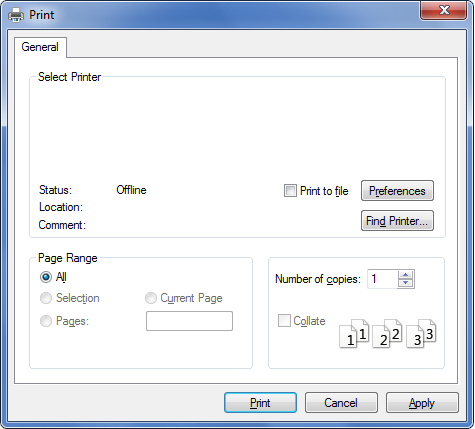
The basic print settings including the number of copies and print range are selected within the window.
To take advantage of the advanced printing features, click or in the application’s window to change the pint setting (see Opening printing preferences).
-
To start the print job, click or in the window.
Canceling a print job
If the print job is waiting in the print queue or print spooler, cancel the job as follows:
-
You can access this window by simply double-clicking the machine icon (
 ) in
the Windows task bar.
) in
the Windows task bar. -
You can also cancel the current job by pressing
 () on the control panel.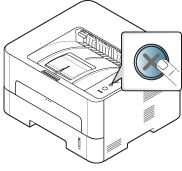
Opening printing preferences
|
|
|
|


-
Open the document you want to print.
-
Select from the menu.
-
Select your printer driver from the list.
-
Click or .
The screenshot may differ depending on model.
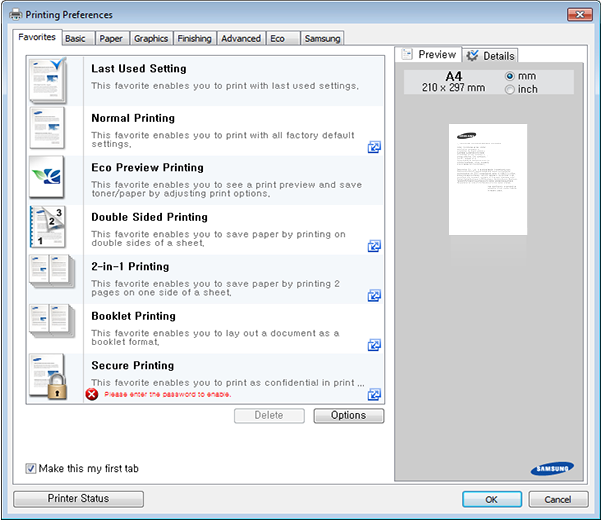
-
You can apply Eco features to save paper and toner before printing (see Easy Eco Driver).
-
You can check the machine's current status using the button (see Using Samsung Printer Status ).
-
To use this feature on Stylish User Interface, click Samsung Printer Center > and then select (see Using Samsung Printer Center).
-
The option, which is visible on each preferences tab except for the and tab, allows you to save the current preferences for future use.
To save a item, follow these steps:
-
Change the settings as needed on each tab.
-
Enter a name for the item in the input box.
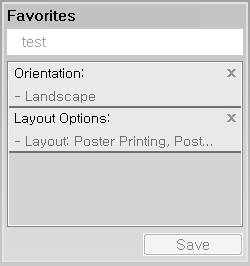
-
Click .
-
Enter name and description, and then select the desired icon.
-
Click . When you save , all current driver settings are saved.
|
|
|
|
To use a saved setting, select it in the tab. The machine is now set to print according to the settings you have selected. To delete saved settings, select it in the tab and click . |
The function cuts toner consumption and paper usage. The function allows you to save print resources and lead you to eco-friendly printing.
If you press the button from the control panel, Eco mode is enabled. The default setting of Eco mode is duplex printing (long edge), multiple pages per side (2-up), skip blank pages, and toner save. Some features may not be available depending on model.
|
|
|
|
|
|
|
|
Depending on the printer driver you use, skip blank pages may not work properly. If skip blank pages feature does not work properly, set the feature from the Easy Eco Driver (see Easy Eco Driver). |
|
|
|
|
To take advantage of the advanced printing features, click or from the window (see Opening printing preferences). |
Open the Eco tab to set Eco mode. When you see the
eco image ( ), that means
the Eco mode is currently enabled.
), that means
the Eco mode is currently enabled.
Eco options
-
: Follows the settings set from the machine's control panel.
-
: Disables Eco mode.
-
: Enables Eco mode. Activate the various eco items you want to use.
Result simulator
shows the estimated results of reduced emission of carbon dioxide, used electricity, and the amount of saved paper in accordance with the settings you selected.
-
The results are calculated on the basis that the total number of printed paper is one hundred without a blank page when the Eco mode is disabled.
-
Refer to the calculation coefficient about CO2, energy, and paper from , the index of Ministry of Internal Affairs and Communication of Japan and www.remanufacturing.org.uk. Each model has a different index.
-
The power consumption in printing mode refers to the average printing power consumption of this machine.
-
The actual saved or reduced amount may differ depending on the operating system used, computing performance, application software, connection method, media type, media size, job complexity, etc.