![[Note]](../../common/icon_note.png)
|
|
|
This control panel may differ from your machine depending on its model. There are various types of control panels. |
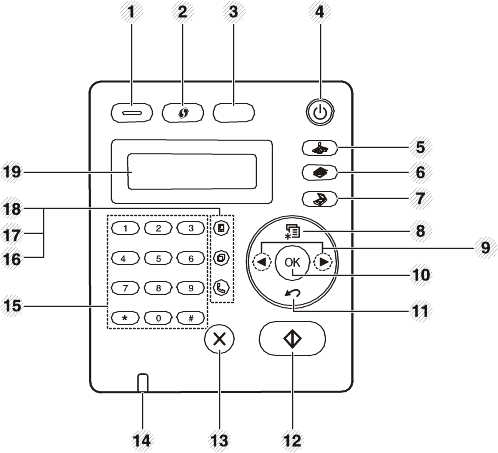
A Type (SCX-472x Series)
|
1 |
Turn into eco mode to reduce toner consumption and paper usage (seeEco printing). |
|
|
2 |
|
Configures the wireless network connection easily without a computer (see Advanced Guide). |
|
|
Adjust the brightness level to make a copy for easier reading, when the original contains faint markings and dark images. |
|
|
3 |
Allows you to copy both sides of an ID card like a driver’s license on a single side of paper (see ID card copying). |
|
|
4 |
 (Power/Wakeup) (Power/Wakeup)
|
Turns the power on or off, or wakes up the machine from the power save mode. If you need to turn the machine off, press this button for more than three seconds. |
|
5 |
 (Fax) (Fax)
|
Switches to Fax mode. |
|
6 |
 (Copy) (Copy)
|
Switches to Copy mode. |
|
7 |
 (Scan) (Scan)
|
Switches to Scan mode. |
|
8 |
 (Menu) (Menu)
|
Opens Menu mode and scrolls through the available menus. |
|
9 |
Left/Right Arrows |
Scrolls through the options available in the selected menu and increases or decreases values. |
|
10 |
Confirms the selection on the screen. |
|
|
11 |
 (Back) (Back)
|
Sends you back to the upper menu level. |
|
12 |
 (Start) (Start)
|
Starts a job. |
|
13 |
 (Stop/Clear) (Stop/Clear)
|
Stops an operations at any time. |
|
14 |
Indicates the status of your machine (see Understanding the status LED). |
|
|
15 |
Dials a number or enters alphanumeric characters. |
|
|
16 |
 (On
Hook Dial) (On
Hook Dial)
|
When you press this button, you can hear a dial tone. Then enter a fax number. It is similar to making a call using speaker phone. |
|
17 |
 Redial/Pause(-) Redial/Pause(-)
|
Redials the last number in ready mode, or inserts a pause(-) into a fax number in edit mode. |
|
18 |
 (Address
Book) (Address
Book)
|
Allows you to store frequently used fax numbers or search for stored fax numbers. |
|
19 |
|
Shows the current status and displays prompts during an operation. |

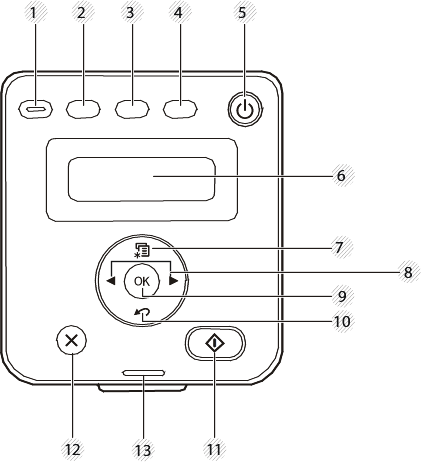
B Type (SCX-470x Series)
|
1 |
Turn into eco mode to reduce toner consumption and paper usage (seeEco printing). |
|
|
2 |
|
Adjust the brightness level to make a copy for easier reading, when the original contains faint markings and dark images. |
|
3 |
Allows you to copy both sides of an ID card like a driver’s license on a single side of paper (see ID card copying). |
|
|
4 |
Sends scanned data (see Basic Scanning). |
|
|
5 |
(Power/Wakeup)
|
Turns the power on or off, or wakes up the machine from the power save mode. If you need to turn the machine off, press this button for more than three seconds. |
|
6 |
|
Shows the current status and displays prompts during an operation. |
|
7 |
(Menu)
|
Opens Menu mode and scrolls through the available menus. |
|
8 |
Left/Right Arrows |
Scrolls through the options available in the selected menu and increases or decreases values. |
|
9 |
Confirms the selection on the screen. |
|
|
10 |
(Back)
|
Sends you back to the upper menu level. |
|
11 |
(Start)
|
Starts a job. |
|
12 |
(Stop/Clear)
|
Stops an operations at any time. |
|
13 |
Indicates the status of your machine (see Understanding the status LED). |
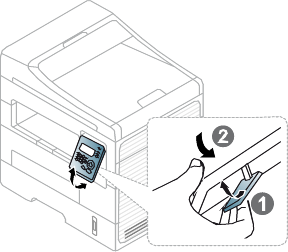
Adjusting the control panel